Instead of remembering to book laundry and prepare your bags each week, connect Hampr to Google Calendar with recurring reminders for booking and pickup preparation. This guide sets up a manual calendar workflow: Google Calendar reminds you what to do, while you arrange and confirm the laundry service separately.
- Connect Hampr to Google Calendar through recurring reminders, not automatic laundry bookings.
- Google Calendar works best for weekly booking reminders and preparation alerts tied to confirmed pickups.
- Keep recurring reminders separate from confirmed pickup events so calendar entries do not look like reservations.
- Update the calendar whenever your pickup details change; reminders do not synchronize booking changes.
Why this matters
Hampr laundry pickup is best for households and businesses that want washing and folding handled for them. The service covers pickup, washing, folding, and delivery in select US cities. A calendar adds a place to organize the tasks around that service—not another place to make the booking.
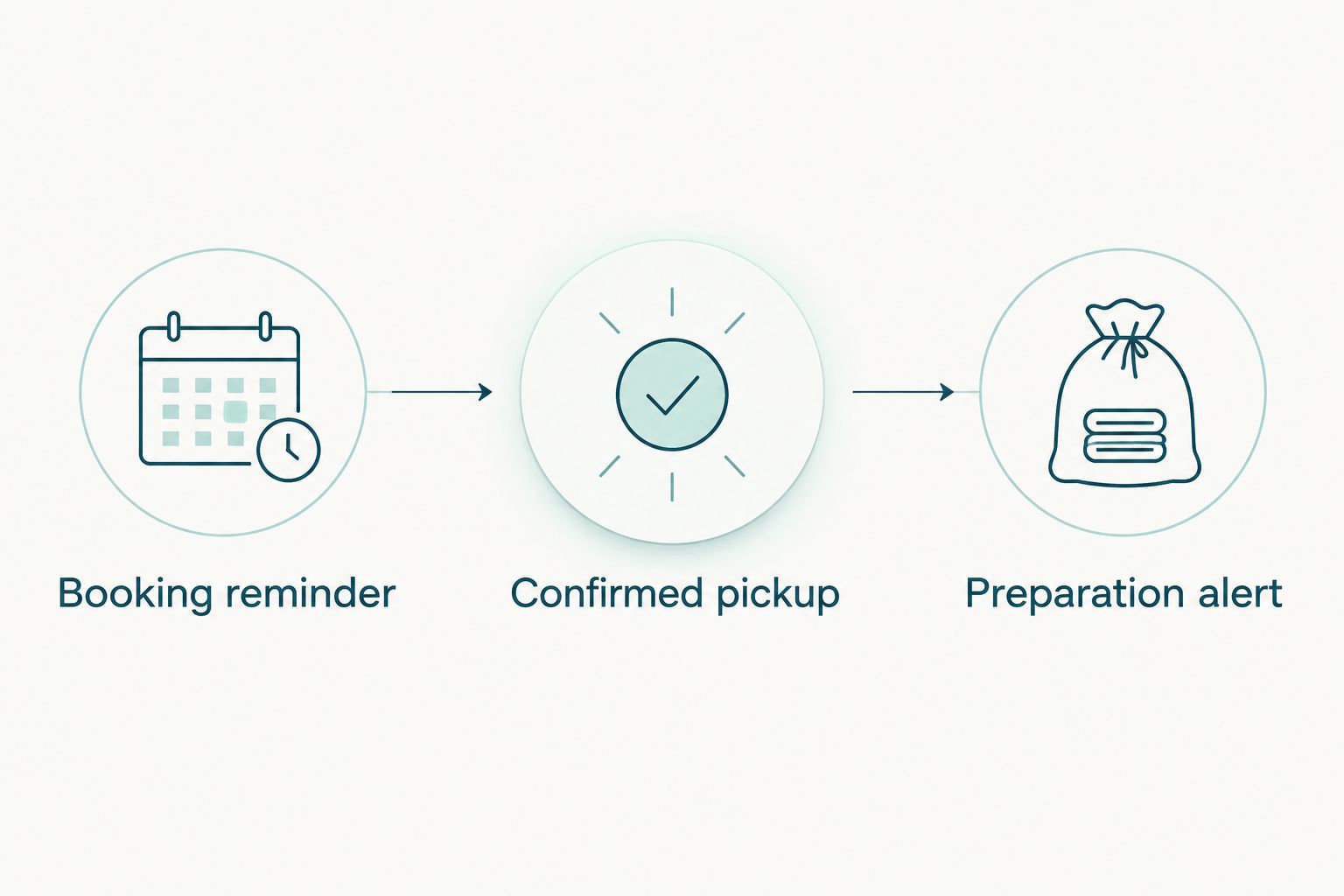
The useful distinction is between a reminder and a confirmed appointment. A repeating event called Laundry pickup looks settled even when you have not arranged anything. A repeating event called Book laundry pickup tells you exactly what remains to be done.
For your 2026 routine, give each calendar entry one job. Use a recurring reminder to prompt the booking, then a separate event to record the confirmed pickup details. You keep the convenience of a weekly rhythm without treating a calendar notification as a reservation.
Before you start
- Service access: Have access to your laundry-service account and the booking details you need to arrange a pickup. Check service coverage for your address before building the routine.
- Calendar access: Sign in to Google Calendar in a desktop browser with permission to create and edit events. These instructions use the browser interface; mobile layouts differ.
- The gotcha: A repeating Google Calendar event does not submit a laundry order. Name unbooked events as reminders, and copy pickup details only after you have a confirmation.
Choose the calendar where the reminders belong before entering anything. A personal calendar keeps the routine private. A shared calendar helps a household or team see the plan, but visibility alone does not assign responsibility.
Pick a person to handle booking and another to prepare the bags only if that division actually helps. Otherwise, keep both tasks with one owner. Laundry should not need a committee.
Configuration: recurring booking reminder
Start with the task that makes the rest possible: arranging the pickup. The recurring event is a prompt to act, not a promise that someone is coming.
Create the reminder
- Open Google Calendar in your desktop browser and select Create, then Event.
- In Add title, enter Book laundry pickup. Use a verb so the event reads as an unfinished task rather than a confirmed appointment.
- Choose a date and time when you can check your laundry needs and arrange service. For example, use Monday at 6:00 p.m. if that fits your household routine.
- Open More options to edit the full event. Check the calendar selection so the reminder lands on the calendar you actually use.
- Select Does not repeat. For the Monday example, choose Weekly on Monday. Choose the corresponding weekly option if you selected another weekday.
- In Add description, write a short action list: check the laundry pile, arrange pickup, and add the confirmed details to the calendar.
- Select Add notification and set a reminder that suits the task. A notification 10 minutes before the event is a simple starting point, not a service requirement.
- Select Save.
Expected result: Book laundry pickup appears on the chosen weekday each week. Open a later occurrence to verify that the event repeats and the action list is present.
For a routine starting in 2026, check the first event's date before saving. Creating the right reminder on the wrong date is still the wrong reminder. Also check that the event has a time rather than being an all-day entry if you want it to occupy a specific slot.
Keep the reminder useful
Write the instructions as actions you can finish. Check laundry, book pickup, record confirmation is more useful than a paragraph explaining why clean clothes are nice.
Do not put building access codes, passwords, or other sensitive details in the description. A calendar entry is an organizational aid, not the place to store account credentials. This matters especially when guests or colleagues can see the event.
If the reminder repeatedly arrives while you are busy, move the recurring series. Change the routine to match your week rather than collecting notifications you ignore.
Configuration: confirmed pickup event
Once you arrange a pickup, create a separate event using the confirmation as your source. This event answers a different question: what has actually been arranged?
Record the confirmed details
- Review the pickup confirmation and identify the date, stated time or window, and any preparation instructions.
- In Google Calendar, select Create, then Event. In Add title, enter Laundry pickup — confirmed.
- Enter the confirmed date. If the confirmation gives a pickup window, use its beginning and end as the event times rather than inventing an exact arrival time.
- Open More options and check the calendar selection. Keep this event on the same calendar as the booking reminder unless you have a clear reason to separate them.
- In Add description, record the useful, non-sensitive details from the confirmation. Include who is responsible for having the laundry ready.
- Select Add notification. As an example, add an alert 1 day before to prepare the laundry and another 30 minutes before to check the handoff arrangements.
- Leave the event non-recurring unless you are recording separately confirmed recurring arrangements. Select Save.
Expected result: Your calendar contains a confirmed pickup event with details that match the actual booking. The repeating Book laundry pickup reminder remains separate.
Those example alerts are preparation choices, not pickup deadlines. Follow the service instructions attached to your booking. A calendar setting cannot replace them.
Check the handoff
Before closing the event, ask whether someone else could read it and understand their job. Laundry ready before the pickup window starts is a clearer instruction than Laundry day.
For apartment households, add a reminder to check the actual handoff instructions for your booking. The guide to laundry pickup apps for apartment dwellers covers that living situation in more detail.
Keep the calendar description short. Put the confirmed window, the responsible person, and the preparation task where you can see them quickly. Leave unrelated household notes elsewhere.
Configuration: notification check
An event can be saved correctly while its reminder still fails to reach you. Test the notification path before relying on it for laundry preparation.
- Create a temporary event in Google Calendar for a time when you can watch for the alert.
- Open More options, select Add notification, and choose the notification type you intend to use for laundry reminders.
- If you choose Notification, check that your browser or phone permits Google Calendar notifications. Device settings and browser permissions also affect delivery.
- Save the test event and check whether the alert reaches the device you normally carry.
- Delete the temporary event after the test. If the alert did not arrive, fix the permissions or notification settings before depending on the recurring series.
Expected result: You receive a test alert through the same route you plan to use for booking and preparation reminders.
For your 2026 setup, test on the device you use during the actual preparation task. An alert that appears only on a closed laptop does not help you remember the laundry bag by the door.
Use the calendar as a cue to act, not as evidence that the service has been booked. The notification text should make that distinction obvious even when you read it in a hurry.
Second workflow: update the calendar when a pickup changes
The adjacent workflow is change management: whenever you change an actual pickup, update its calendar event. This is a manual update, not background synchronization.
Open the confirmed pickup event, select the pencil icon to edit it, and replace the date, time, or window with the revised confirmation. Check the description and notifications, then select Save. If the booking is canceled, remove the corresponding confirmed event rather than leaving an appointment that no longer exists.
For a repeating reminder, Google Calendar asks how widely to apply an edit. Choose This event for a one-off exception. Use This and following events or All events when the change belongs to the wider routine, reading the confirmation dialog before saving.
Choose the right pattern
| Calendar pattern | Best for | Advantage | Limitation |
|---|---|---|---|
| Recurring booking reminder | Households with a regular laundry routine | Prompts the booking task without rebuilding the reminder each week | Does not confirm or place a pickup order |
| Confirmed pickup event | Changing schedules or individual bookings | Records the date and window of an actual arrangement | Needs manual editing when the booking changes |
Use both patterns when you want a regular habit and accurate appointment details. They solve different problems. The recurring reminder keeps the task on your radar; the confirmed event tells you what is arranged.
If your work pattern changes during 2026, move the booking reminder to a time you can consistently use. Update confirmed pickup events separately. Editing the reminder series does not change your service arrangements.
Troubleshooting
The reminder repeats, but no pickup is arranged
The calendar is repeating an event, not submitting an order. Open the booking reminder, complete the booking task through the service, and create a confirmed event from the resulting details. Rename any unbooked event that looks like an appointment.
The notification does not appear
Check the event's notification setting, the calendar's visibility, and notification permissions on your device or browser. Confirm that you are signed in to the account containing the event. Repeat the temporary-event test after changing settings.
A pickup moved, but the calendar shows the old time
Edit the confirmed pickup event using the revised booking details. Do not change only the recurring booking reminder: it has a different job. Remove obsolete duplicate events so there is one clear record of the arrangement.
A one-off change altered the whole routine
Review the recurring series and restore its usual schedule. Then edit the exception using This event. Before saving future changes, check whether the dialog applies to one occurrence or the series.
The calendar time looks wrong after travel
Check Google Calendar's time-zone settings and compare the event with the pickup confirmation. Keep the pickup tied to the intended local date and time. Do not adjust the actual booking based solely on how a traveling device displays the event.
Customize your workflow
Once the basic routine works, add only the tasks that remove a real point of friction. A preparation reminder helps if you forget to gather laundry. A separate put-away reminder helps if folded clothes keep living in a bag.
For a shared household, identify the owner of each task in the event description. For a business, separate booking responsibility from preparation responsibility if different people handle them. Keep sensitive customer or employee information out of calendar notes.
Review the routine after a few actual pickups. Delete redundant alerts and move reminders that arrive at an inconvenient time. Your 2026 calendar should help you finish laundry tasks, not become another pile to sort.
Start your laundry routine
Arrange laundry pickup separately, then add the confirmed details to Google Calendar.
FAQ
How do I connect Hampr to Google Calendar for recurring pickups?
Use Google Calendar to create a recurring booking reminder and separate events for confirmed pickups. This guide uses a manual reminder workflow, not an automatic connection that places orders.
Does a recurring Google Calendar event book my laundry pickup?
No. A recurring Google Calendar event repeats the calendar entry and its reminders; you still need to arrange the laundry service separately.
What's the best calendar setup for a weekly laundry routine?
Use a weekly booking reminder alongside a non-recurring event for each confirmed pickup. This separates the task of booking from the record of an actual arrangement.
How early should I set a laundry preparation reminder?
Set the reminder early enough to follow your booking's preparation instructions. A day-before alert is an optional planning choice, not a service deadline.
Can I share laundry reminders with someone in my household?
Yes, Google Calendar supports sharing calendars and inviting guests to events. State who handles booking and preparation, and keep sensitive access details out of shared descriptions.
What should I do if my pickup date changes?
Update the confirmed pickup event to match the revised booking. Check its notifications too; calendar entries in this manual workflow do not synchronize themselves with service changes.
Will changing the calendar event change my Hampr booking?
No. Editing this Google Calendar reminder workflow changes only the calendar entry; make any service changes through the booking process, then update the calendar to match.
One last thing
Name reminders for the action you still need to take. Book laundry pickup and Prepare laundry tell you what to do; Laundry pickup — confirmed tells you what is arranged. That small naming choice keeps a tidy calendar from pretending the laundry is already handled.