Instead of remembering laundry day from scratch every week, connect Hampr to Apple Reminders by creating a recurring planning reminder and a separate reminder for your confirmed pickup. This connects your routine, not your accounts: Apple Reminders prompts you to act, while you arrange laundry pickup through Hampr.
- Connect Hampr to Apple Reminders with recurring laundry reminders, not an automatic booking connection.
- Apple Reminders is best for prompting you to plan laundry and prepare a confirmed pickup.
- Keep the planning reminder recurring; give pickup preparation its own confirmed date and time.
- Changing a laundry booking does not update the reminders you create in this guide.
Why this matters
A laundry reminder should tell you what to do, not leave you decoding a notification while looking for socks. There is a difference between remembering to arrange pickup and remembering to have your laundry ready for a pickup you already arranged.
Hampr laundry pickup and delivery is best for households and businesses that want washing and folding handled for them. Apple Reminders handles the memory part. Keeping those jobs separate prevents a weekly notification from looking like a booking confirmation.
For your 2026 laundry routine, use one source for the actual pickup details: your confirmed booking. Use reminders as prompts that reflect those details, never as proof that someone is coming.
Before you start
- Have your iPhone and Apple Reminders ready. This walkthrough uses the iPhone app's English labels. You do not need an Apple Shortcuts automation for this setup.
- Have access to your laundry booking details. Confirm your address is within the service area and arrange pickup before creating a reminder that names a pickup time. A planning reminder can come first.
- Know the gotcha: recurrence is not a reservation. A weekly reminder repeats a task; it does not book pickup, read booking changes, or confirm delivery. After rescheduling laundry, update the reminder yourself.
Keep the first version small: 1 list and 2 reminders. Those are setup choices, not service requirements. One reminder prompts you to arrange laundry; the other tells you when to prepare it.
You can add household sharing or extra tasks later. Start with a routine you can understand from the notification alone.
Your laundry list
The list keeps laundry tasks out of your general pile of errands. Give it a plain name you will recognize immediately, such as Laundry.
- Open Reminders on your iPhone and return to the screen showing your lists.
- Tap Add List. If the app asks you to choose an account, select the account where you want to keep this list.
- Enter Laundry as the list name. Choose a color or icon if you want a visual cue, then tap Done.
- Open the Laundry list. This is where you will place both your planning task and your pickup-preparation task.
Expected result: you have an empty Laundry list that you can open without searching through unrelated reminders.
For a shared household routine, choose an iCloud list if you intend to use Reminders collaboration. A list stored under a different account does not necessarily offer the same sharing features. Make that choice before adding the household's tasks.
The advantage of a dedicated list is clarity. The drawback is that you must check another list, so timed notifications still matter. A neatly named list alone will not interrupt your afternoon when it is time to bag the laundry.
For your 2026 setup, resist adding every laundry thought at once. Keep instructions in each task's notes instead of creating a separate notification for every sock, towel, and pillowcase.
Your planning reminder
The planning reminder answers one question: when should you arrange your next laundry pickup? Choose a time when you can actually act, rather than a time when you are usually driving or rushing out the door.
- Open the Laundry list and tap New Reminder.
- Enter Arrange laundry pickup as the title. Keep the wording action-based: you are making a booking, not announcing one.
- Open the reminder's Details using its information button. Turn on Date and select the next day you want to review your laundry needs.
- Turn on Time and choose a practical time. For example, use 6 p.m. on a day when you normally review household errands; this is your chosen planning time, not a service deadline.
- Tap Repeat, select Weekly, and return to the details screen. Use a weekly repeat only if that matches your laundry routine.
- In Notes, write a short instruction such as: Check the laundry pile, arrange pickup, then add the confirmed preparation reminder. Tap Done to save.
Expected result: Arrange laundry pickup has a due date, a time, and a weekly repeat. Open its details again to verify all three before relying on the alert.
Complete the task after you finish the planning action. With a repeating reminder, completing an occurrence lets Reminders create the next occurrence. Deleting the task is different: it removes the reminder rather than keeping your routine running.
Repeat the decision to book, not an unconfirmed pickup. That distinction is the heart of this workflow. A repeating planning task remains useful even when your next pickup day changes.
If weekly laundry is not your pattern, leave Repeat off and create the next planning task when needed. The simpler version is better than a stream of reminders you dismiss without reading.
Your pickup-preparation reminder
Create the preparation task after you have confirmed pickup details. Its job is to make sure your laundry is ready at the right moment, not to predict the booking.
- In the Laundry list, tap New Reminder and enter Prepare laundry for pickup.
- Open Details, turn on Date, and select the date that matches your confirmed pickup arrangements.
- Turn on Time and choose an earlier preparation time. For example, allow yourself 15 minutes to gather laundry; choose a longer interval if your household needs it. This is a personal preparation buffer, not a pickup window.
- In Notes, add the confirmed details you need to follow and any preparation instructions supplied with your booking. Do not substitute generic bagging advice for those instructions.
- Leave Repeat off for this confirmed pickup. Tap Done, then reopen the task to check the date and time.
- After preparing the laundry, mark the reminder complete. If the booking changes first, edit this reminder before completing it.
Expected result: you have a one-time preparation alert tied to a real booking, alongside a separate repeating planning task.
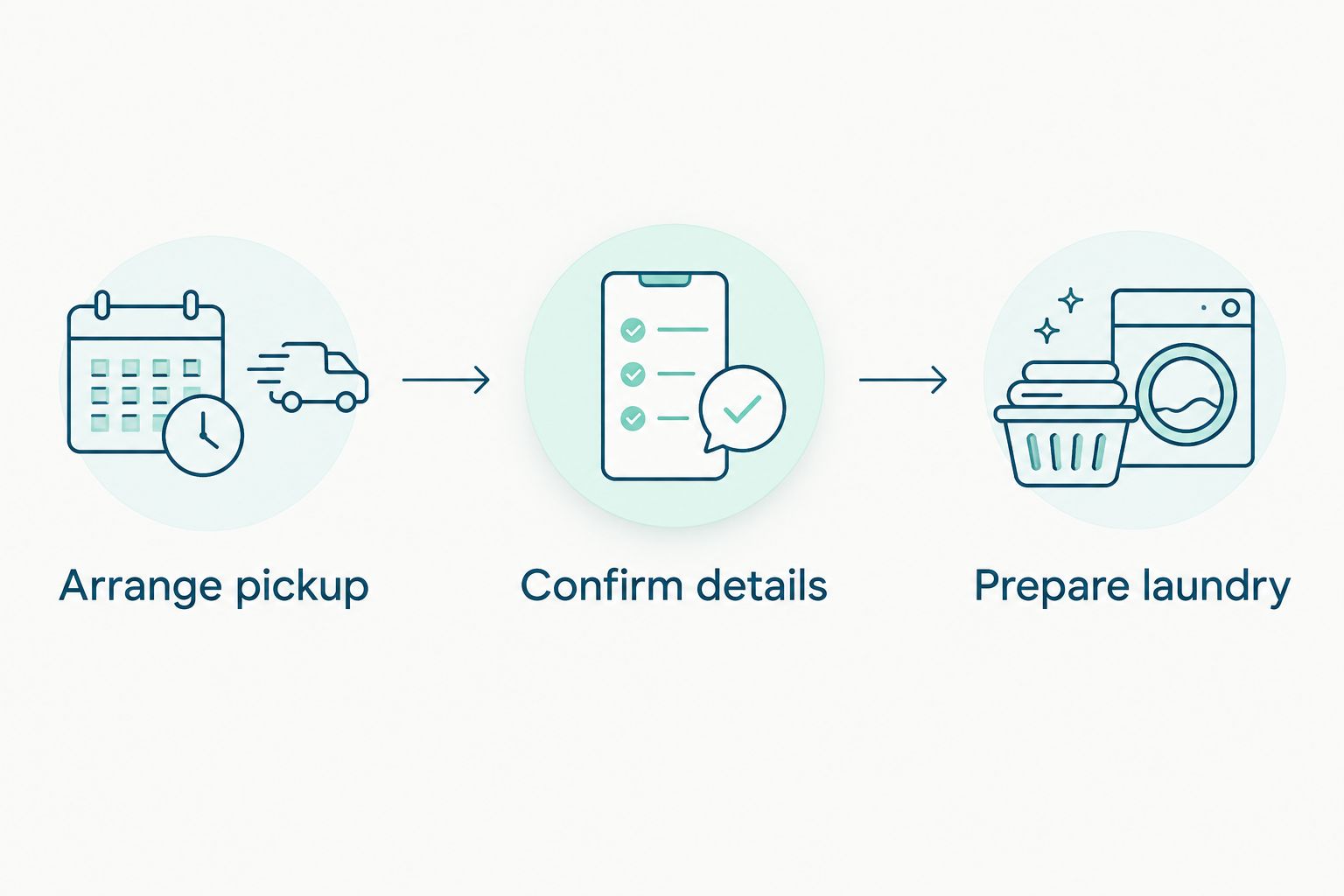
Your 2026 routine now has a clear handoff: planning leads to a confirmed booking, which leads to preparation. Neither reminder claims that booking or pickup happens automatically.
Keep the notification title short and put supporting details in Notes. Prepare laundry for pickup tells you what to do immediately; a title stuffed with instructions is harder to scan.
Before you finish, open iPhone Settings, tap Notifications, select Reminders, and check Allow Notifications. Choose the notification presentation you will notice. Also review any Focus you use during your preparation time, because Focus settings can silence notifications.
Variant: repeat preparation for a stable routine
A recurring preparation reminder is useful when you deliberately follow the same laundry schedule. It reduces reminder editing, but it introduces a maintenance job: you must correct the task whenever the confirmed arrangements change.
Best for a changing schedule: keep preparation as a one-time reminder. Best for a stable household routine: use recurring preparation only while checking it against each confirmed booking.
| Reminder workflow | Best for | Advantage | Limitation |
|---|---|---|---|
| Recurring planning plus one-time preparation | Pickups that change from week to week | Preparation follows the confirmed booking | You enter each new preparation date |
| Recurring planning plus recurring preparation | A stable, deliberately checked routine | Fewer reminder edits when arrangements stay the same | A schedule change leaves the old alert in place until you edit it |
To use the second workflow, open the preparation reminder's Details, tap Repeat, and select Weekly. Check that the first due date falls on the intended weekday and that the time leaves room to prepare.
When pickup arrangements change, review both Date and Repeat. Changing the first occurrence without checking the repeating pattern can leave you with a routine you no longer intend to follow. For an irregular week, a separate one-time preparation task is easier to understand.
In 2026, keep this rule visible in the reminder's Notes: Check against the confirmed booking. Automation is not helpful when it confidently reminds you of the wrong plan.
This variant does not respond automatically to booking updates. When you receive changed details, open the reminder and edit them yourself. That is the trade-off for using a straightforward reminder-based workflow rather than a verified account integration.
Troubleshooting
The reminder appears, but there is no pickup booking
A reminder is a task you created, not a booking record. Open the service you use and check the actual booking before preparing for pickup. Rename any unconfirmed task Arrange laundry pickup so its notification cannot be mistaken for confirmation.
The reminder is visible, but no notification arrives
Check that the task has both Date and Time enabled. Then check Allow Notifications for Reminders in iPhone notification settings and review the active Focus. A task sitting in a list is not the same as a timed alert you have configured to receive.
The next weekly task is not appearing as expected
Open the reminder's Details and confirm Repeat is set to Weekly. Complete the current occurrence rather than deleting it, then check the next due date. If you removed the whole reminder, recreate the task and its repeating settings.
Pickup moved, but the preparation alert stayed put
Edit the preparation reminder's Date and Time to reflect the changed booking. Check Repeat too if you chose the recurring variant. The workflow in this guide has no booking-update connection, so a service change does not rewrite your task.
You are receiving duplicate laundry reminders
Search Reminders for the preparation task and inspect its list, due date, and repeat setting. Keep the task that matches your intended routine and remove accidental duplicates. If you intentionally keep both planning and preparation, give them different action-based titles so the notifications are easy to distinguish.
Customize your workflow
Once the basic routine works, add only the tasks that solve a real household problem. For example, create Put clean laundry away after you have delivery details, or use the preparation task's notes to remind yourself where laundry instructions are kept.
For a shared routine, invite household members to an iCloud reminders list and agree who owns the planning task. Reminders supports assigning tasks in shared lists, but assignment does not complete the work. Keep one person responsible for checking the booking details against the preparation reminder.
Apartment pickup adds another practical consideration: access instructions. Keep the current instructions with the booking and use your reminder to check them before preparation. The guide to laundry pickup apps for apartment dwellers covers that setting in more detail.
Keep the workflow smaller than the chore. If maintaining reminders starts to feel like doing laundry paperwork, return to the planning task and one confirmed preparation alert.
FAQ
How do I connect Hampr to Apple Reminders for laundry day?
Create a laundry list with a recurring planning reminder and a separate preparation reminder based on your confirmed pickup. This guide connects your routine through reminders; it does not establish an account integration or book pickup automatically.
Does an Apple Reminders task automatically book laundry pickup?
No, the reminder workflow described here does not book laundry pickup. Arrange pickup separately, then enter the confirmed preparation date and time into Reminders.
Can I make my laundry reminder repeat every week?
Yes, open the reminder's Details, select Repeat, and choose Weekly. Use that setting for a planning task, and verify each pickup before setting its preparation alert.
Will my reminder update when I reschedule laundry pickup?
No, the tasks you create in this guide do not read booking changes. Edit the preparation reminder's date and time whenever your confirmed arrangements change.
Should I use one reminder or separate planning and preparation reminders?
Separate reminders are best when arranging pickup and preparing laundry happen at different times. They distinguish an action you still need to take from preparation for an existing booking.
Can someone else in my household manage the laundry reminders?
Yes, you can share an iCloud reminders list and assign tasks to participants. Agree who checks the booking and updates the preparation task so responsibility stays clear.
Why did my laundry reminder not send an alert?
Check the reminder's date and time, Reminders notification permissions, and your active Focus settings. A reminder without the intended time or notification permissions will not provide the timed prompt you expect.
One last thing
Completion keeps a recurring task moving; deletion removes it. That small difference matters when you want next week's laundry prompt to survive this week's clean clothes.
For your 2026 Hampr laundry pickup routine, make the notification a clear instruction: arrange pickup or prepare laundry. Your future self should know what to do without opening a detective case.