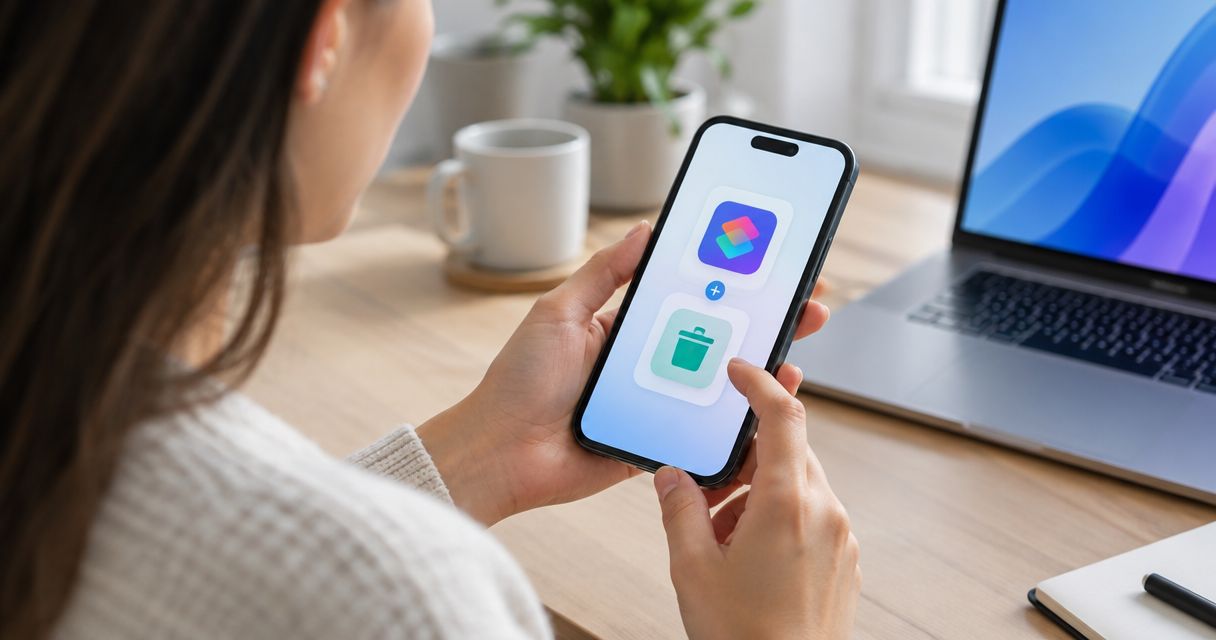
Instead of manually rebuilding a laundry reminder after every booking, create an iPhone shortcut that asks for your reminder time and adds the task to Apple Reminders. This guide covers a confirmation-first setup for Hampr pickups and a weekly automation for a regular laundry-prep routine; neither workflow books or changes a pickup.
- To add Hampr pickup reminders to iPhone Shortcuts, combine Ask for Input with Add New Reminder.
- Best for changing pickup dates: run the shortcut after confirming your booking and enter the reminder time.
- Best for regular laundry preparation: use a weekly Time of Day automation with a fixed preparation reminder.
- Apple Shortcuts creates the reminder; your laundry booking remains separate.
Why this matters
A booking and a reminder do different jobs. The booking arranges the service. The reminder gets you off the couch, checks the pockets, and helps you put the laundry where it needs to be.
Hampr laundry pickup and delivery is best for households and businesses that want laundry collected, washed, folded, and returned. Apple Shortcuts handles the separate task of putting your preparation reminder in Apple Reminders.
For this 2026 setup, start with a shortcut you run after confirming a pickup. It automatically creates the reminder once you supply the time, without guessing your booking details. Add an unattended weekly version only if your preparation routine follows a regular schedule.
The distinction matters: a recurring notification is not proof that a pickup is booked. Keep the confirmed booking as the source of truth, and use your reminder as the nudge to get ready.
Before you start
- Have the Apple apps ready. You need Shortcuts and Reminders on your iPhone, a reminder list you can write to, and notifications enabled for Reminders. This guide uses English interface labels; layout and wording can differ between iOS versions.
- Have the confirmed pickup details ready. For the confirmation-first shortcut, choose when you need to start preparing—not simply when the pickup window starts. Use the current booking information, not last week's reminder.
- Know the unattended-automation catch. A shortcut containing Ask for Input needs an answer. Do not attach that shortcut to a weekly automation and expect it to finish without you. The unattended variant below replaces the question with a calculated reminder time.
Keep booking and preparation separate. Nothing in this workflow reads an order confirmation, changes your laundry instructions, or sends information to the service.
Choose your reminder workflow
Both options create an Apple reminder. The difference is where the reminder time comes from.
| Workflow | Best for | How it gets the time | Advantage | Limitation |
|---|---|---|---|---|
| Confirmation-first shortcut | Pickup dates that change | You enter the reminder date and time | Keeps each reminder tied to a booking you checked | Requires you to run the shortcut and answer its question |
| Weekly preparation automation | A regular laundry-prep routine | A weekly trigger plus a date adjustment | Creates a preparation reminder without a date-entry prompt | Does not know whether a pickup is booked or rescheduled |
Use the confirmation-first shortcut for actual pickup preparation. Choose the weekly automation when the task is a dependable household habit, such as gathering laundry or checking whether you need a pickup.
For a 2026 routine with changing work shifts, school activities, or travel, entering the confirmed reminder time is more useful than preserving a weekly schedule that no longer fits.
Reminder list setup
Give the shortcut a clear destination before adding actions. A dedicated list makes test reminders easy to find and keeps laundry tasks out of your grocery list.
- Open Reminders and tap Add List.
- Name the list Laundry, then finish creating it with Done.
- Open Settings, then Notifications, then Reminders. Turn on Allow Notifications if it is off, and choose the notification presentation you want.
- Return to Reminders and check that the Laundry list is visible and accepts a manually created task.
If you already have a household list you use reliably, select that instead. A new list is organizational help, not a requirement.
For your first setup, use a list you control. Bring shared household lists into the workflow after you have verified that the shortcut writes to the right destination.
Expected result: You have a known reminder list and have enabled Reminders notifications. No shortcut or pickup booking has changed yet.
Confirmation-first shortcut configuration
Build the shortcut around one question: when should the phone remind you to prepare? Asking for the reminder time directly avoids hidden assumptions about how long you need to gather laundry.
- Open Shortcuts and tap + to create a shortcut. Name it Prepare laundry pickup.
- Tap Add Action, search for Ask for Input, and add that action.
- Set the prompt to: When should I remind you to prepare the laundry?
- Change the input type to Date and Time. Keep both the date and the time; a time-only answer does not identify the pickup day.
- Add the Add New Reminder action below the question.
- Set the reminder title to Prepare laundry for Hampr pickup, and select the Laundry list as its destination.
- In the reminder action's alert setting, choose At Time. Set its date value to the output of Ask for Input, using the variable selector rather than typing a permanent date.
The critical connection is the question's output becoming the reminder's alert time. A fixed date left in that field will keep creating reminders for that same date, regardless of your answer.
Use a preparation time that fits your household. For example, choosing a reminder 30 minutes before you need the laundry ready is a planning choice, not a service requirement. If you need longer to sort clothes and check pockets, enter an earlier time.
Expected result: Running the shortcut opens a date-and-time question, then creates one reminder in the Laundry list with an alert at the time you entered.
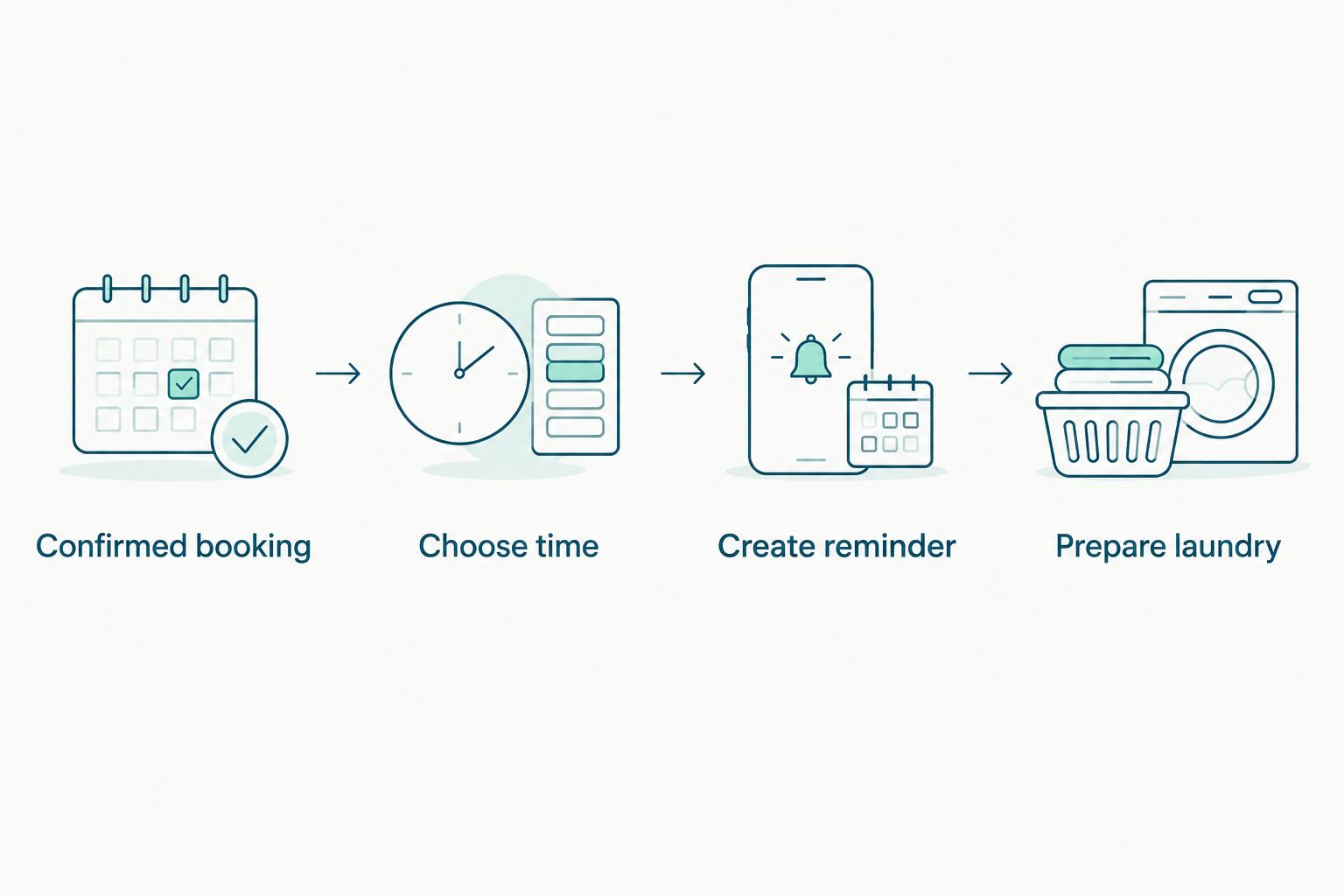
The shortcut has a simple path: Confirmed booking, Choose time, Create reminder, Prepare laundry. Only the middle two steps happen inside Shortcuts.
Shortcut test and verification
Test the actual reminder, not just whether the shortcut finishes. A successful run is useful only if the task lands in the right list with the right alert.
- Run Prepare laundry pickup from Shortcuts.
- Enter a test time 5 minutes ahead of the current time.
- Allow access to Reminders if iOS requests it.
- Open the Laundry list and inspect the new task. Check its title, date, time, and destination list.
- Lock your iPhone and check for the notification at the chosen time. Review Focus settings if the alert is silenced.
- Delete the test task. Run the shortcut again with the preparation time for your confirmed pickup.
Use 2 test runs if you change the list or date variable: one to inspect the task, and another to check notification delivery. These are setup checks, not a performance benchmark.
Expected result: The test produces a correctly dated reminder, and the real run produces a separate task for your confirmed booking. Remove the test task so it does not become a stray laundry nudge.
For this 2026 workflow, do not treat the shortcut's completion animation as proof that the notification settings are correct. Inspect the reminder itself.
Add a weekly preparation reminder automatically
A weekly variant makes sense when the preparation task repeats even before you have booked anything. Give it a different title so nobody mistakes it for a confirmed pickup.
Best for: Gathering laundry on a regular day or remembering to check your next booking. Trade-off: A weekly trigger cannot detect a changed pickup schedule.
Create a separate shortcut named Weekly laundry preparation:
- Create a new shortcut in Shortcuts. Do not include Ask for Input.
- Add Current Date, followed by Adjust Date. Configure the adjustment to add 30 minutes to the current date.
- Add Add New Reminder. Use Check booking and gather laundry as the title, and choose the Laundry list.
- Select At Time for the reminder alert and use the output of Adjust Date as the date value.
Next, attach the shortcut to a weekly trigger:
- Open Automation in Shortcuts and tap +. Select Time of Day.
- Choose your preparation day and time. Set the repeat option to Weekly and select the intended weekday.
- Where your iOS version offers Run Immediately, select it. On versions that use Ask Before Running, turn that confirmation off for unattended execution.
- Choose the Weekly laundry preparation shortcut. If the automation editor opens instead, add Run Shortcut and select it there.
- Save the automation, then inspect its trigger and selected shortcut.
Expected result: The weekly trigger runs without a date-entry question and creates a reminder due 30 minutes later. It does not check for a booking.
As a concrete setup example, an automation running at 6:00 p.m. creates a reminder due at 6:30 p.m. Those are your chosen routine times, not pickup promises.
When you travel or change your routine in 2026, edit or disable this automation. Completing last week's reminder does not stop next week's trigger.
Troubleshooting
The reminder appears without a notification
Open the task in Reminders and inspect its date and time. Selecting a list and writing a title is not enough; the shortcut must also assign an alert time.
Confirm that At Time uses the question's output or the adjusted date, depending on the workflow. Then review Allow Notifications and your active Focus settings. Test with a future time rather than an already-passed deadline.
The weekly automation stops at a question
The automation is running the confirmation-first shortcut. Its Ask for Input action cannot supply its own answer.
Select Weekly laundry preparation instead. Keep the unattended version free of prompts, and check the automation's immediate-run or confirmation setting.
Multiple reminders appear for the same pickup
Add New Reminder creates a new task each time the action runs. This setup does not search for an existing reminder before adding another.
Delete the extra tasks and run the confirmation-first shortcut once per booking. If you keep both workflows, retain distinct titles: one for a confirmed pickup and one for checking the weekly laundry routine.
The reminder keeps using an old date
Inspect the alert field in Add New Reminder. A manually typed date can remain in place even when the earlier action asks for a fresh one.
Replace the fixed date with the appropriate action output. Run another test and inspect the resulting task before trusting the shortcut again.
The pickup changed but the reminder did not
Edit or delete the existing reminder in Apple Reminders. This workflow does not monitor order changes or rewrite tasks when a booking moves.
After confirming the new pickup details, update the preparation time. Changing the laundry booking and changing the reminder are separate tasks.
Customize your workflow
Start with one preparation reminder, then expand only when a second task solves a real problem. A clear reminder beats a phone full of tiny laundry alarms.
- Make the task actionable. Use a title such as Gather laundry and check pockets instead of Laundry. The notification should tell you what to do.
- Separate checking from preparing. Keep the weekly task as a booking check, and reserve the confirmation-first shortcut for the actual preparation deadline.
- Keep instructions in the right place. Reminder notes can help your household remember tasks, but they do not send laundry preferences or access instructions to the service.
- Adjust the routine when life changes. Revisit the automation when your household schedule changes in 2026, rather than waiting for another poorly timed alert.
For a simpler reminder-centered setup, read how to connect Hampr to Apple Reminders for laundry day.
FAQ
How do I add Hampr pickup reminders to iPhone Shortcuts?
Create a shortcut with Ask for Input set to Date and Time, followed by Add New Reminder. Pass the answer into the reminder's At Time alert and select your laundry list. Run it after confirming your booking.
Does this shortcut automatically book a laundry pickup?
No, this shortcut creates an Apple reminder, not a laundry booking. Arrange or change the pickup separately, then enter the preparation time you want.
Can my iPhone create the reminder automatically every week?
Yes, a weekly Time of Day automation can run a shortcut that adds a reminder. Use Current Date and Adjust Date instead of Ask for Input so the shortcut does not wait for an answer. The weekly task does not verify a booking.
Will the reminder update when I reschedule my pickup?
No, this workflow does not monitor booking changes. Edit or delete the existing reminder after rescheduling, then set the preparation alert to match the new confirmed details.
Why does my shortcut create duplicate reminders?
Add New Reminder creates a separate task on every run. This guide does not include duplicate detection. Delete extra tasks and run the confirmation-first shortcut once per confirmed booking.
Can I use the shortcut with a shared household reminder list?
Yes, select a shared list you have permission to edit as the destination. Confirm that the new task appears there. Each person's notification delivery depends on their own device settings.
Do I need a native laundry-service action in Shortcuts?
No, this workflow uses Apple Shortcuts actions and Apple Reminders rather than a native laundry-service action. It does not retrieve pickup details automatically, so you supply the preparation time or use a fixed weekly routine.
One last thing
The most useful reminder comes before the work needs to be finished. Set the alert for when you should start gathering laundry, not the moment you need it ready.
That small distinction turns a notification into a usable plan. Give yourself room to find the missing sock.