

To connect Hampr to Outlook calendar for office pickups, create an Outlook event from your confirmed pickup details and invite the people handling the bags. Instead of sending fresh reminders every laundry day, use that event to coordinate preparation and handoff; this is a manual calendar workflow, not an automatic booking connection.
- To connect Hampr to Outlook calendar, copy confirmed office pickup details into an event; this workflow does not sync bookings.
- Outlook reminders coordinate bag preparation and handoff, but they do not schedule laundry service.
- Use separate events for changing pickups and recurring reminders for repeatable office preparation.
- Keep booking changes and calendar changes aligned manually so coworkers follow the correct pickup details.
Why this matters
Office laundry gets awkward when the bags are ready but nobody knows where they belong. A calendar event gives reception, the office manager, and a backup contact the same instructions without another round of messages.
Hampr laundry pickup is best for households and businesses seeking pickup, washing, folding, and delivery in select US cities. Outlook serves a different purpose: coordinating your office's part of that handoff. Start with the service information on Hampr, then use the confirmed pickup details to build your calendar entry.
For your 2026 office routine, keep this distinction clear: the service confirmation controls the pickup; the calendar controls your team's preparation. Moving an Outlook event does not move a laundry booking. An invitation also does not notify the person collecting the bags.
Before you start
- Have Outlook calendar access. These instructions use Outlook on the web. You need permission to create events on your chosen calendar and the email addresses of coworkers responsible for preparation or handoff.
- Have confirmed pickup details. Keep your Hampr pickup date, time or window, office address, and agreed handoff instructions nearby. Choose a primary office contact and a backup before sending invitations.
- Watch the booking-versus-reminder gap. This setup does not send instructions to the laundry service or read booking changes. Put service instructions in the booking process separately, and update Outlook yourself when details change.
Use a calendar your team already checks. A new calendar that nobody opens is just another laundry pile, only digital. If you cannot edit a shared calendar, create an event on your own calendar and invite the responsible coworkers instead.
Configure the pickup event
Create the calendar entry
- Open Outlook on the web and select Calendar. Open the calendar you intend to use, then select New event.
- Enter a clear event title, such as Office laundry pickup — reception handoff. Name the task rather than using a vague title like Laundry.
- Set the date and start and end times to match the confirmed pickup details. If you receive a pickup window, represent that window rather than inventing an exact arrival time.
- Enter the office address and agreed handoff point in the location field. A suite number or reception desk description helps coworkers distinguish the handoff spot from the building entrance.
- Add the preparation and handoff instructions in the event description. Use the template below, replacing the example text with your office's actual arrangements.
For a 2026 example, a confirmed pickup dated June 16, 2026 belongs on June 16, 2026—not on the day someone first requested it. Copy the date from the confirmation rather than relying on a coworker's memory.
Use this description template:
- Booking reference: Add the reference supplied with the booking, if one exists.
- Primary contact: Name the coworker responsible for having the bags ready.
- Backup contact: Name the person covering absences.
- Preparation: State what the office needs to gather and where it belongs.
- Handoff point: Describe the agreed collection location.
- Booking changes: State who updates the service booking and the calendar.
Keep entry codes, payment details, and unnecessary personal information out of the invitation. Calendar descriptions are shared with invitees, so include only what those coworkers need to do their jobs.
Expected result: You have a draft event that matches a confirmed pickup and tells an unfamiliar coworker what to do. It does not create or modify a service booking.
Set responsibility and reminders
- Use Invite attendees to add the primary contact and backup. Add reception only when reception has a handoff task; the entire office does not need another invitation.
- Set the event reminder to a preparation lead time that fits your office. As an example, choose 30 minutes when gathering the bags requires a walk through several rooms.
- Check Show as before sending. Choose Free when the event is a coordination reminder rather than time the attendee must keep clear.
- Select Send for an event with attendees. For an appointment without attendees, select Save.
- Ask the primary contact to open the invitation and check the date, location, and instructions. Have the backup confirm access too.
A pickup window and a preparation task are not always the same calendar commitment. If reception must be present for the whole window, do not mark that commitment free simply to keep the calendar tidy.
Treat reminder timing as an office choice, not a service requirement. A small team might choose 15 minutes; an office gathering laundry from several departments might choose 30 minutes. Test your choice against the actual work rather than assuming a longer reminder solves every problem.
Expected result: The right coworkers receive the event, responsibility is explicit, and the calendar reflects whether the handoff occupies their time.
Configure the preparation routine
A pickup event tells people when collection is expected. A preparation reminder tells them when to get the bags ready. Keep these separate when preparation happens well before the pickup window or belongs to a different coworker.
- Create another event with New event and title it Prepare laundry.
- Place it before the confirmed pickup, leaving enough time for your actual gathering and packing tasks. A 10-minute preparation appointment is an example, not a promised completion time.
- Invite only the people doing the preparation. Put the collection location and primary contact in the description.
- Add a reminder and select Send, or Save if it is a personal appointment.
- Keep the pickup event as the reference for the confirmed collection window. Do not give the preparation appointment a title that makes it look like a second booking.
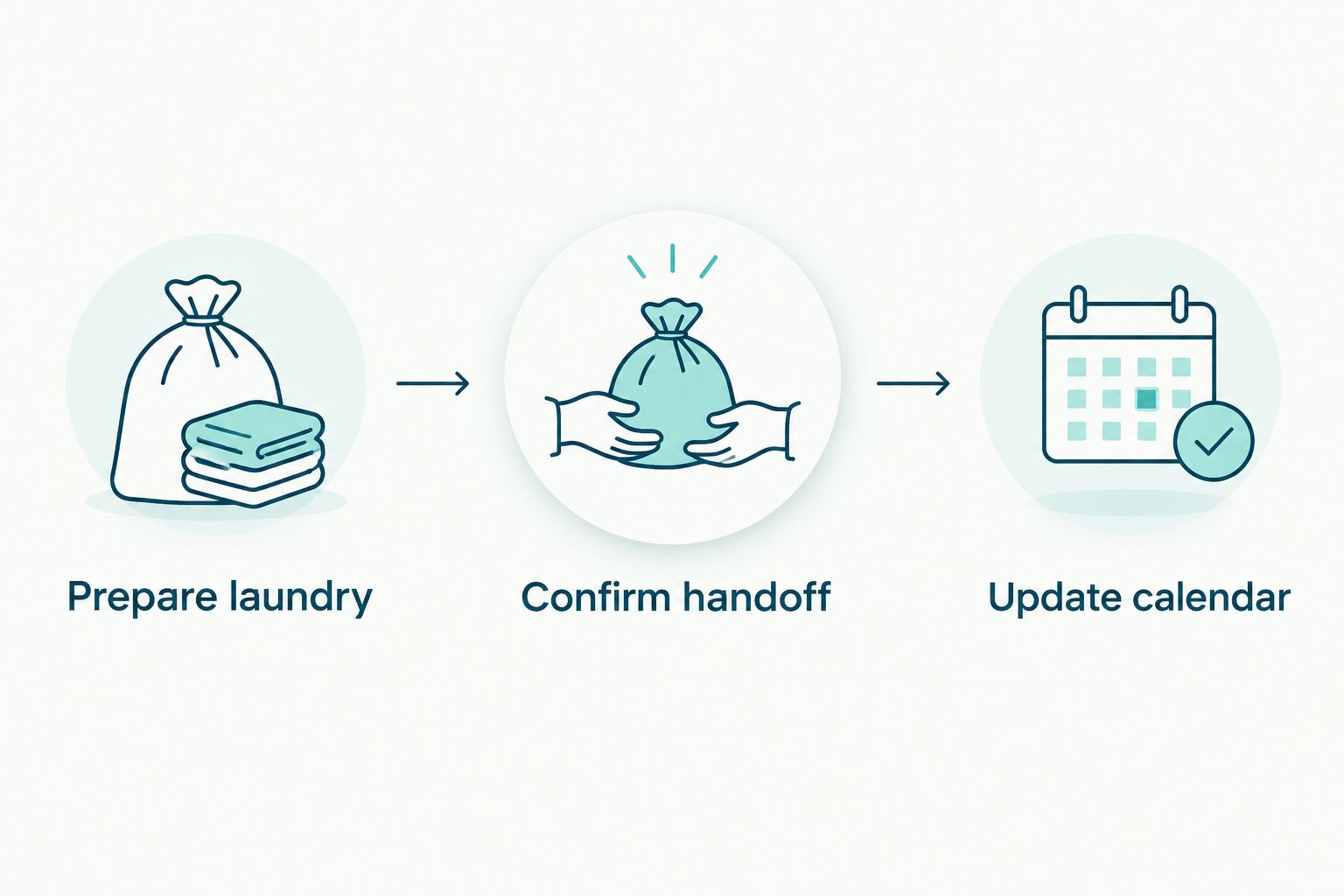
For this 2026 setup, use three plain stages: Prepare laundry, Confirm handoff, and Update calendar. The first means the bags are ready, the second means your office has verified the collection, and the third means someone has checked any changed details. These are office tasks, not service-status labels.
Put practical packing questions in the preparation routine rather than burying them in calendar settings. The guide to preparing laundry for pickup and delivery gives your team a separate place to review that part of the process.
Expected result: Preparation has its own owner and timing. The pickup event remains a clear record of when your office expects collection.
Add recurring preparation reminders
A recurring reminder honestly fits a repeatable office task, even when collection dates change. Use it to prompt someone to check the next booking or gather laundry—not as evidence that future pickups have been arranged.
For your 2026 routine, choose the approach that matches how your office works:
| Calendar approach | Best for | Benefit | Limitation |
|---|---|---|---|
| Separate pickup events | Offices with changing collection dates | Each entry reflects a specific confirmed pickup | Someone must create and maintain each event |
| Recurring preparation reminders | Offices with a regular internal laundry routine | Repeats the team's preparation prompt | Does not confirm or schedule future collections |
Use separate events for confirmed pickups and recurrence for internal preparation. That combination keeps convenience from turning into a misleading calendar promise.
- Create an event titled Prepare laundry or Review next pickup.
- Open the event's recurrence control and choose the pattern that matches your office routine. Outlook's recurrence controls differ between versions, so make this change in the web calendar used for the rest of this guide.
- Give the repeating reminder an end date that matches your office's planning period. Avoid an indefinite series that outlasts its owner.
- State in the description that each collection still requires a confirmed service booking.
- Invite the responsible coworker, send the event, and check the next occurrence on the calendar.
Do not copy a single confirmed pickup window into an endless series and assume it stays accurate. A repeating preparation task is useful precisely because it makes no claim about a future driver's arrival.
Expected result: Your team gets a repeatable preparation prompt without mistaking it for a standing collection arrangement.
Update Outlook whenever a pickup changes
The second workflow starts with a booking change rather than a new event. Confirm the service change first, then edit the matching Outlook entry. Dragging an event to another day only changes the calendar.
- Check the revised pickup details through the service's booking or communication process.
- Open the matching Outlook event. Confirm that you are editing the correct office and collection date.
- Replace the date, time window, location, or instructions that changed. Remove outdated details instead of leaving conflicting notes in the description.
- Send the updated invitation to attendees. If Outlook asks whether a change applies to one occurrence or a series, choose the scope that matches the actual change.
- Adjust the preparation reminder separately if the team needs to gather the bags at a different time.
For a canceled collection, remove or cancel the corresponding event and tell the responsible coworkers. Do not leave it in place with a vague description change that nobody is likely to read.
Expected result: The booking and the office calendar describe the same pickup, and the people doing the work receive the changed instructions.
Troubleshooting
The reminder appeared, but no pickup was arranged
An Outlook reminder is not a service order. Check the booking record before treating the calendar entry as a confirmed collection. Rename recurring tasks Review next pickup if the word pickup is causing confusion.
A coworker cannot see the event
Check the attendee's email address and whether the invitation was sent rather than left as a draft. If the event lives on a shared calendar, confirm that the coworker has access to that calendar. An invitation is often simpler than asking someone to find an unfamiliar shared calendar.
The event shows the wrong local time
Compare the event with the confirmed pickup window and check Outlook's calendar time-zone settings. This matters when a remote office manager coordinates another location. Put the office's local context in the description so a traveling coworker can verify the intended handoff.
The entire recurring series changed
Open the series and review upcoming occurrences. Restore the regular preparation pattern, then edit only the affected occurrence for a one-off change. Keep confirmed pickup events separate if recurrence edits repeatedly cause mistakes.
Instructions changed, but the collection team did not receive them
Calendar edits reach your invited coworkers, not automatically the laundry service. Send operational instructions through the service's booking or communication process as well. Keep sensitive access details out of broadly shared events.
Customize your workflow
Once the basic routine works, add detail only where it prevents a real handoff problem. For multiple offices, include the location in every event title. For staff coverage, name a backup instead of inviting a large group and hoping someone takes charge.
Give return delivery its own event only after you have confirmed return details. A pickup date does not establish a return date, and a calendar should not turn an assumption into an office promise.
Review the routine when the office manager, reception coverage, or handoff location changes. Your 2026 calendar is useful only while the instructions describe the office as it actually operates.
FAQ
Can I connect Hampr to Outlook calendar automatically?
This guide connects Hampr pickup details to Outlook through manually created events, not an automatic integration. It does not provide a live booking sync or automatic updates.
Does creating an Outlook event book an office laundry pickup?
No. An Outlook event coordinates your coworkers; you must arrange the laundry pickup separately and use the confirmed details for the calendar entry.
What's the best Outlook setup for changing office pickup dates?
Separate events are best for changing office pickup dates because each event can match a specific confirmation. Use recurring events for internal preparation reminders rather than unconfirmed collections.
Can reception and an office manager share the same pickup reminder?
Yes. Invite both coworkers to the event and name the primary contact and backup in the description. Confirm that both can open the invitation.
Will moving the Outlook event reschedule my laundry pickup?
No. Moving an Outlook event changes only the calendar entry. Confirm the service change separately, then send the updated calendar invitation.
Should the office pickup event make my Outlook calendar busy?
Mark the event busy when someone must reserve that time for the handoff. Use free when the event is only a coordination reminder and does not require uninterrupted attendance.
What should I leave out of the calendar invitation?
Leave out entry codes, payment information, and unnecessary personal details. Include only the location, responsibilities, and instructions that invited coworkers need.
One last thing
Name the backup before you add another reminder. More notifications cannot carry bags to reception when the responsible person is out. A clear owner and a backup make this office routine more useful than a crowded calendar ever will.